|
Introduction
The SAS/Intrnet System is the underlying technology which enables the Trialex
System to function. The following will document some configurations which are
specific to the Trialex System. This document assumes that SAS/Intrnet v8.0 build
1330 has been installed and configured according to SAS Institute instructions.
Architecture
The following diagram describes the relationship between the servers. It is
optional to configure all the systems into one server but this example will separate them
for clarification.
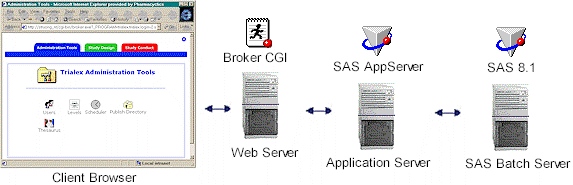
The four components that need configuration include:
- Internet Explorer 5.x
- Broker CGI
- SAS/IntrNet Application Server
- SAS Batch Server
Internet Explorer
Since each web page received from the Trialex System is dynamically created, it
is recommended that web pages are not cached. This will ensure that the current
viewed page is the active one. To configure this, select the menu: Tools |
Internet Options...
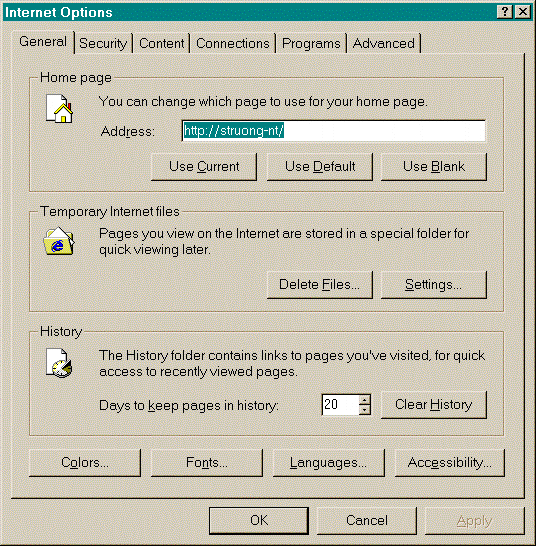
Select the Settings... button and select Every visit to the page as
shown here:
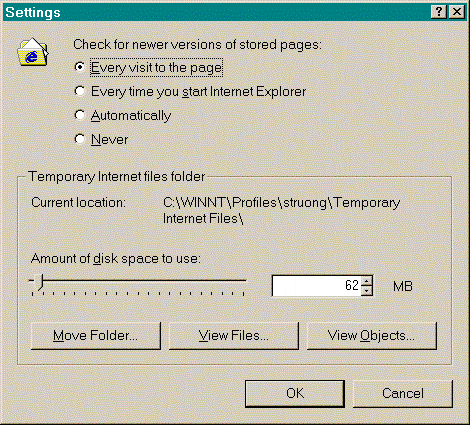
Click on the OK button two times to complete this configuration.
Broker CGI
The broker installation creates a default broker.cfg configuration file.
Most of the lines can be left to the default settings. The following lines
may be customized.
# Set the site specific information
Administrator "Sy Truong"
AdministratorMail "sy.truong@meta-x.com"
SocketService default "Reuse existing session"
ServiceDescription "Pages reference this generic server when they don't care which
service is used."
ServiceAdmin "Sy Truong"
ServiceAdminMail "sy.truong@meta-x.com"
Server struong-nt.pcyc.com
Port 5001 5002
Note that there are two port numbers in this example. The second one is optional
but this will spread the load for performance optimization. The procedure for
setting the second port and service can be used for additional services.
In the event that the application dispatcher is an older version (i.e. 6.12), add the
following line to the broker.crf.
ServiceCompatibility 1.0
In addition, there is a field width option which should be commented out. It may
appear as:
# FieldWidth 88
Ensure that it has a pound sign to indicate that it has been commented out. If it
is in effect, it will break up the variables by blocks of the specified width.
SAS IntrNet Application Server
Once SAS version 8.x and SAS/IntrNet have been installed, select the menu item Create
a New IntrNet Service which is part of the IntrNet group.
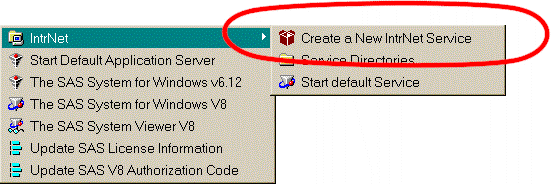
Click on the Next button on the welcome page of the IntrNet configuration utility.
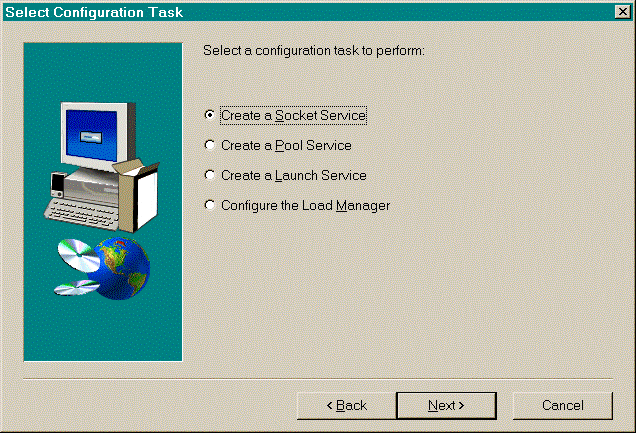
Select the socket service as shown here:
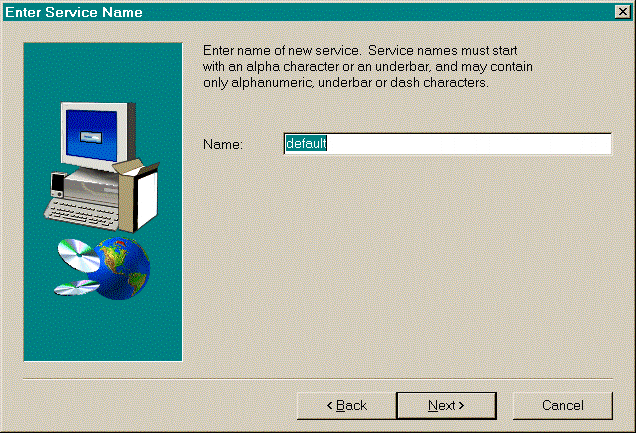
Leave the default value of default for the service name:
Select the directory where this service will be installed. The default name can
be left as default.
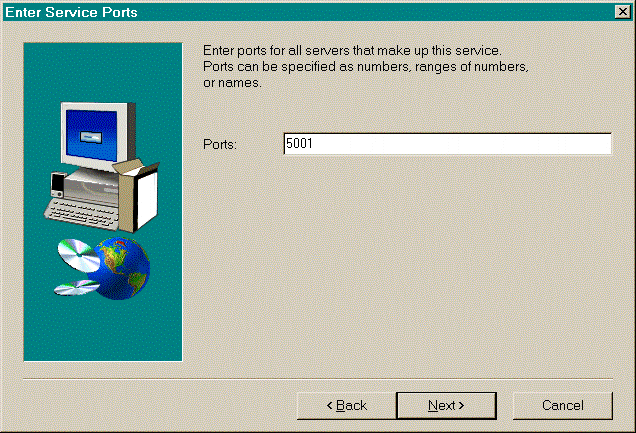
The default port is 5001. If this port has already been configured for another
SAS/IntNet service, use 5002 instead. The password is optional for extra security.
This can be left blank. Click on the next button to confirm all requests and
then the finish button to create the service.
The service process creates three files for each service corresponding to each port.
They include:
- Application Service Start SAS Program (i.e. appstart_5001.sas)
- A command file to invoke the SAS program (i.e. appstart_5002.bat)
- A log file (i.e. appsrv_5001.log)
The SAS program needs to be updated with the following addition:
*** Define libraries for the Trialex
System ***;
allocate library trialusr v6 'H:\trialex\users' ;
allocate library trialdat v6 'H:\trialex\data' ;
datalibs trialusr trialdat;
allocate library trialex v6 'H:\trialex\sashelp' access=readonly;
proglibs trialex sashelp.trialex;
Note that the hard drive location H: in the example can be updated to reflect the
server location. This is an example of the Trialex System in SAS version 6.
The SAS version 8 will no longer require the v6 designation for the library
settings.
The steps for setting up a service can be repeated if multiple services are required
for performance. Note that each service needs a unique port number and that this
same port number is included in the broker configuration settings.
SAS Batch Server
In the event where SAS programs being submitted through the Trialex System are
developed for SAS version 6, the following configuration can be edited to the Sasv8.cfg
configuration file. This is located in the SASROOT directory of the SAS
installation.
/* Set data engine to V6 only */
-engine V6
This will ensure that datasets being created remain in SAS version 6.
SAS/Connect to Batch Server Configuration
The following section documents the configuration of SAS/Connect on both the
application server and SAS batch server. This includes:
Trialex System SAS/Connect
Parameters
The Trialex System needs to be configured with the proper SAS/Connect parameters.
This is accomplished through the Trialex system configuration tools. The
parameters include:
- Connect Communication Access Method - The SAS/Connect communication method such
as the protocol. For example, tcp is a valid value for the tcp/ip protocol.
- Connect Remote Host - The name of the remote host machine.
- Connect Link Script - The SAS/Connect script file including the full
path. For example: C:\SAS\connect\saslink\tcpwin.scr
These parameters are entered through the %config tool. An
example configuration program is shown here:
%config (param=Connect Communication
Access Method, value=tcp);
%config (param=Connect Remote Host, value=server_name);
%config (param=Connect Link Script, value=c:\SAS\connect\saslink\tcpwin.scr);
Application Server Script File
SAS/Connect will be executed as an authenticated user for proper security. The
user name and password is configured in a script file which is stored in a secured area on
the application server. The script file has the extension of (.scr) and is stored in
the SAS Connect link directories. Here are some examples of their locations:
- D:\SASV8\CONNECT\SASLINK
- C:\SAS\CONNECT\SASLINK
The following examples are script segment intended for the TCP protocol (tcpwin.scr).
   if not tcp then goto notcp;
   if signoff then goto signoff;

   /* --------------- TCP SIGNON ------------------------------------*/
   /* Uncomment the following section as well as the noprompt and    */
   /* nolog error routines if you invoked the spawner progam with    */
   /* the -p (protection) option. Protection is disabled by default. */

   waitfor 'Username:' , 120 seconds: noprompt;
   /* input 'Userid?'; */
   type 'my usrname' LF;
   waitfor 'Password:' , 120 seconds: nolog;
   /* input nodisplay 'Password?'; */
   type 'my password' LF;
   waitfor 'Hello>'
         , 'access denied'         :  nouser
         , 120 seconds             :  timeout
         ;
Note that the user name and password in red needs to be changed accordingly
to match the account of a user with access to the remote machine.
SAS Application Server Connect
Spawner
The following example describes how a SAS spawner service is started for a NT server.
The following commands can be accomplished at a command line but they are stored in
a SAS program for clarity.
*** Define Location of the SAS Spawner
***;
x "cd D:\SAS_v8\";
*** The following example shows an example for SAS 6.12 ***;
*** x "cd D:\SAS\CONNECT\SASEXE";
*** Uncomment this section to delete previous service ***;
*** x "spawner.exe -delete";
*** Start the service with security for proper authentication ***;
x "spawner.exe -install -comamid tcp -security";
Starting Spawner Services
The SAS spawner services has to be started before it can create the telnet connection
to the batch server. The following commands can be inserted into a SAS program
to start or stop a SAS job spawner.
*** Stop a job spawner service ***;
x 'NET STOP "SAS JOB SPAWNER"';
*** Start a job spawner service ***;
x 'NET START "SAS JOB SPAWNER"';
Configuring NT Privileges
In order for SAS/Connect to run in batch mode, proper privileges has to be granted to
the batch server which allows batch jobs to be submitted remotely. Start the
configuration from the user manager tool usually located at: Start > Programs >
Administration Tools > User Manager
- Select the menu: Policies > User Rights...
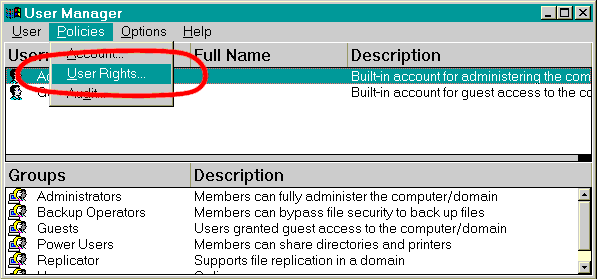
- Grant privileges to the local NT server administrators group to the "Log on as a
batch job".
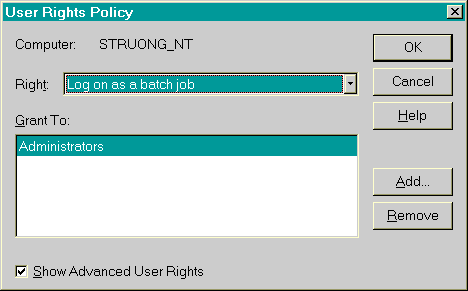
Ensure that the user that is is defined in the SAS/Connect script is part of the local
NT administrator group.
Test Program
Use the following programs to test SAS/Connect. Note that there is no ampersand
(&) in front of the rsession macro.
*** Start the Remote login for the rsubmit ***;
%let rsession=struong_nt;
options remote=rsession comamid=tcp;
filename rlink "C:\SAS\connect\saslink\tcpwin.scr";
signon;
rsubmit;
data one;
a =10;
run;
proc print;
run;
endrsubmit;
signoff;
|

